Software
Recover, our data recovery software
Deleted files or a formatted drive: with Recover you get your data back yourself. Free, without limits, for Windows, macOS and Linux. The source drive is only read, never written to.
Recovery
Hard disk and SSD HDD, SSD, external drives, flash cards RAID, NAS & SAN All levels, all controllers, virtualisation Smartphones and tablets iPhone, Android, iPad, Huawei Tapes LTO, DAT, DLT and older formats
Access after signing in.
EN · RU · ZH · ES
Software
Deleted files or a formatted drive: with Recover you get your data back yourself. Free, without limits, for Windows, macOS and Linux. The source drive is only read, never written to.
Recover is Datarecuperatie software for getting files back from hard drives, SSDs, USB sticks, memory cards, RAID sets and disk images. It is meant for logical problems: files that were deleted, or a drive that was formatted.
The most important rule is built into the software: the source drive is only ever read. You always write recovered files to a different drive.
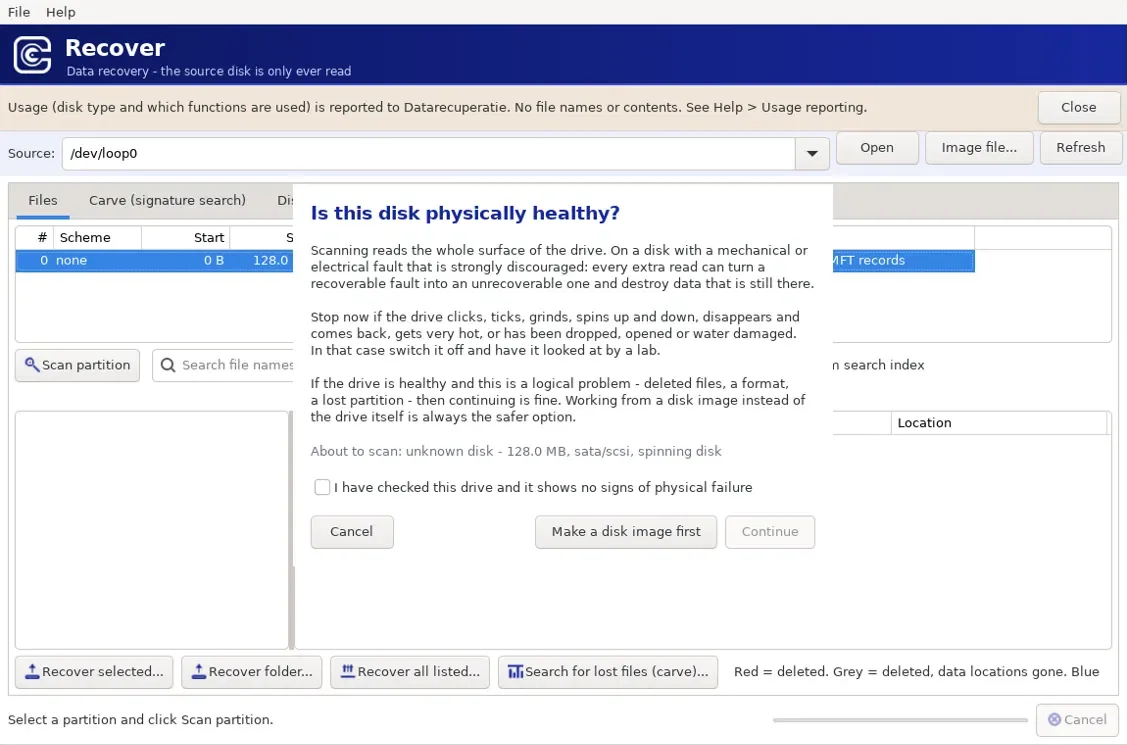
A scan reads the entire surface of the drive. With a mechanical or electronic fault, that can cause exactly the damage that makes data unrecoverable. That is why Recover explicitly asks, before every scan, whether the drive is physically sound.
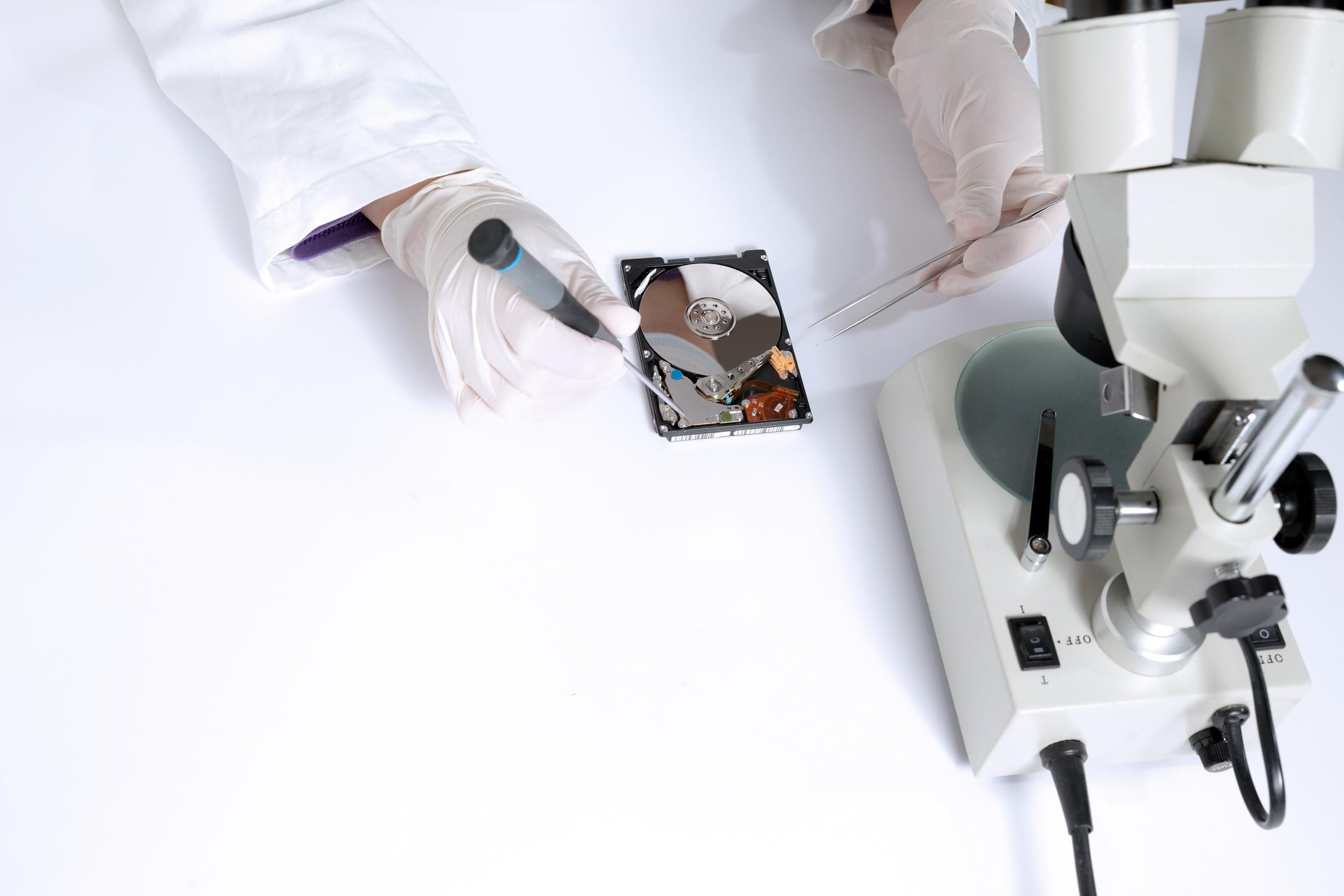
If the drive clicks, ticks or grinds, disappears and comes back, gets very hot, or has been dropped, opened or water damaged, stop right away and have it checked by a lab. If the drive is healthy and the problem is logical, you can continue. Safer still is to make a disk image first and work from that: Recover offers that choice straight away.
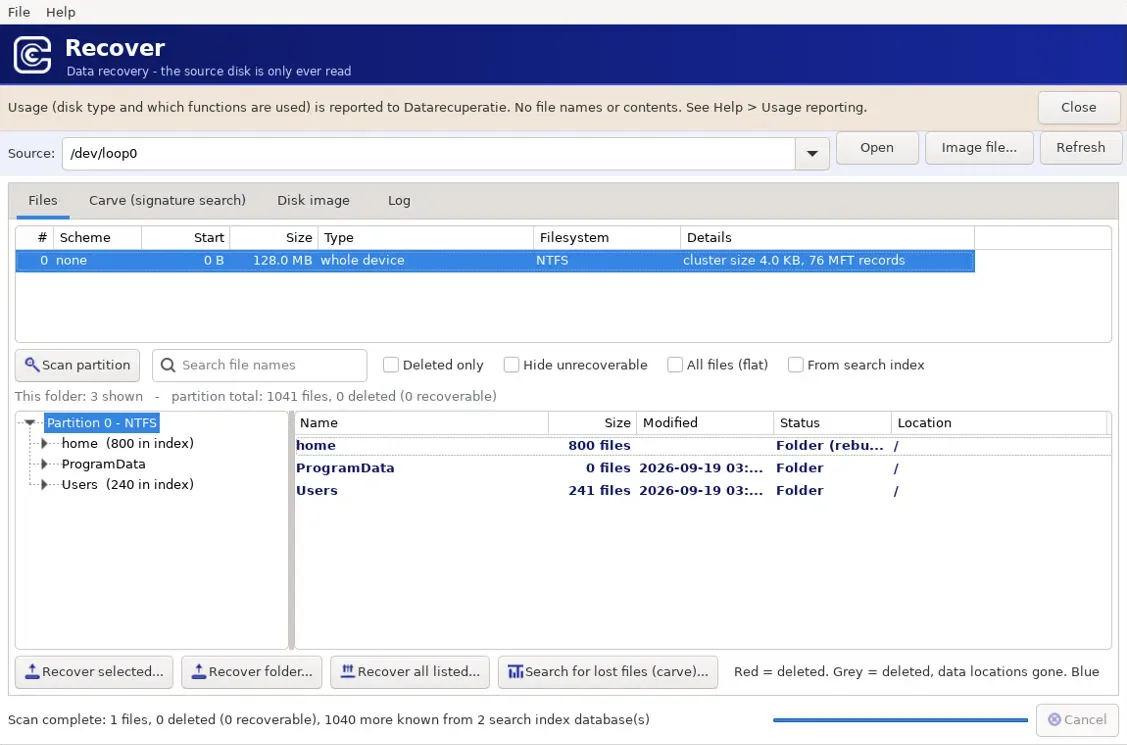
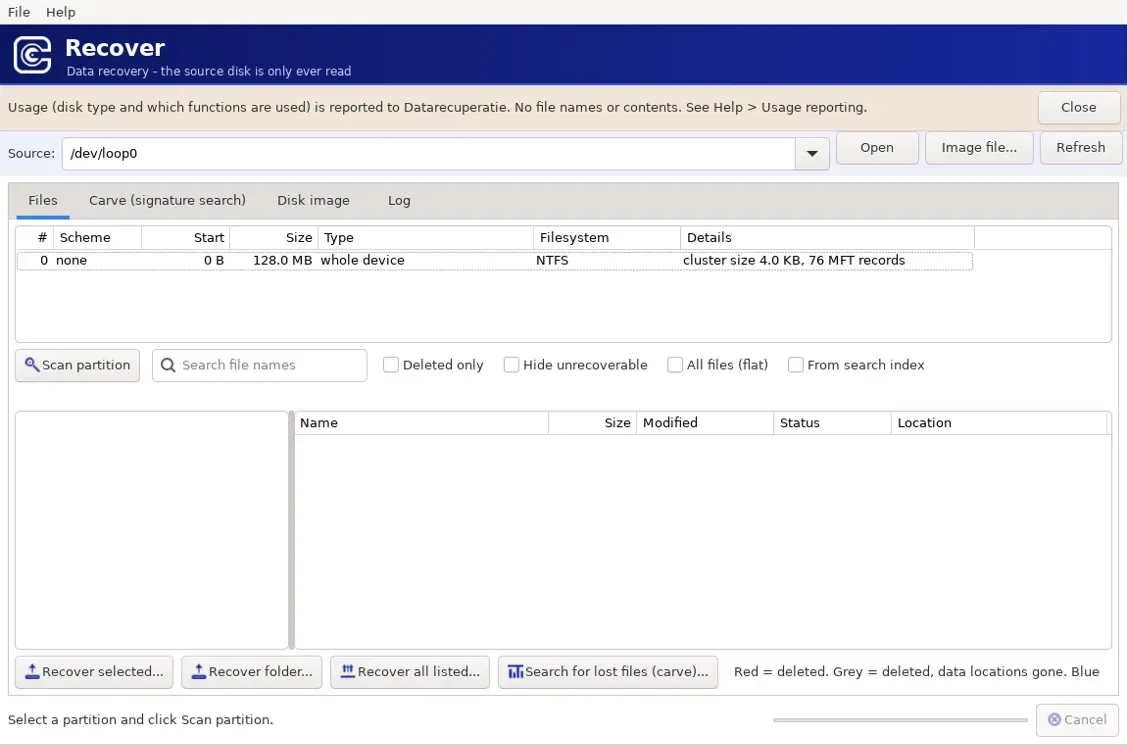
Read partitions and the file system, find deleted files and filter them: deleted only, hide unrecoverable, everything in one list, or supplemented from the search index. Recover per file, per folder or the whole list.
Where the file system knows nothing any more, Recover looks for files by their recognisable start and structure (file carving): 334 formats, 554 extensions, from photos and documents to databases, video and mail archives.
Make a full copy of the drive and continue working on that, so the original drive is stressed as little as possible. Recover also opens existing image files.
During a scan, Recover reads the file system structures, such as the Master File Table (MFT) on NTFS, and shows the records of deleted files alongside the existing ones. Whether a deleted file can still be fully recovered depends on whether the location of its data is still known and has not been overwritten.
File carving works without a file system: it searches the drive for known file headers and structures. That way it finds files after heavy damage or formatting, but without their original name or folder.
The search indexes of Windows, macOS and Linux keep file names and paths in their own databases. Recover reads those databases and uses them to rebuild the folder structure.
| File system | Where you find it | Deleted files |
|---|---|---|
| FAT12, FAT16, FAT32 | USB sticks, memory cards | yes, with long names |
| exFAT | memory cards, external drives | yes |
| NTFS | Windows | yes, also fragmented and whole folders |
| ext2, ext3, ext4 | Linux, many NAS devices | yes, ext3/4 via the journal |
| XFS | Linux servers, NAS | written, not yet confirmed on real cases |
| Btrfs | Linux, Synology | written, not yet confirmed on real cases |
| HFS, HFS+ | older macOS | yes |
| APFS | macOS | not yet confirmed |
| ReFS | Windows Server, Storage Spaces | yes on 3.x; 1.x content search only |
| UDF | DVD, Blu-ray, some cameras | yes |
| UFS | BSD, older Unix, some NAS | yes |
| F2FS | Android, flash memory | folders and names |
| JFFS2, UBIFS | flash memory in routers and devices | yes |
| ZFS | TrueNAS, Solaris, Proxmox | file contents read (byte-verified); deleted via carving |
| VMFS | VMware datastores (ESXi) | file contents read (byte-verified); deleted via carving |
| bcachefs | Linux (recent) | file contents read (byte-verified); deleted via carving |
In total Recover reads 27 file systems with their folders and names, down to the byte-verified file contents (including ZFS, VMFS and bcachefs), with CoreStorage additionally detected and identified. Partition tables: GPT (also with 4K sectors), MBR with logical partitions, or no table. Compressed NTFS files are flagged but not yet decompressed.
Recover reports to Datarecuperatie which kind of drive is used and which functions are used. File names, paths and file contents are never sent. That is also stated at the top of the software window.
In the settings you see exactly what a report looks like before it is sent. Including the drive serial number is a separate choice, and reporting can be switched off completely.
As of 24 September 2026. Where Recover falls short, it says so. Data on the other programs comes from their own websites and is not re-checked daily.
| Feature | Recover | Recuva Free | PhotoRec / TestDisk | DMDE Free Edition |
|---|---|---|---|---|
| Price | ✅ €0 | ✅ €0 | ✅ €0 | ✅ €0 |
| Windows, macOS, Linux | ✅ all three | ⚠️ Windows only | ✅ all three | ✅ all three |
| File names and folders back | ✅ 27 file systems | ✅ FAT and NTFS | ❌ PhotoRec only gives f0001234.jpg | ✅ |
| Deleted files with their name | ✅ FAT, exFAT, NTFS, ext2/3/4 (via the journal), HFS/HFS+, ReFS, UDF, JFFS2, UBIFS, UFS | ✅ FAT and NTFS | ❌ | ✅ |
| No limit on the number of files | ✅ | ✅ | ✅ | ❌ 4,000 at a time |
| Content search (carving) | ✅ 334 types, 550+ extensions | ❌ | ✅ 353 families | ⚠️ limited |
| Exact length per recovered file | ✅ from the format's structure | – | ❌ often runs on to the next file | ⚠️ partly |
| Search indexes | ✅ Windows Search, Spotlight, SQLite | ❌ | ❌ | ❌ |
| Reads SMART | ✅ incl. NVMe | ❌ | ❌ | ✅ |
| Refuses to scan a dying drive | ✅ | ❌ | ❌ | ❌ |
| Disk imaging | ✅ | ❌ | ✅ | ✅ |
| E01 (EnCase) | ✅ incl. compressed | ❌ | ❌ | ✅ |
| VHD, VHDX, VMDK, QCOW2, VDI | ✅ with snapshot chains | ❌ | ❌ | ⚠️ partly |
| Names from the recycle bin | ✅ | ✅ | ❌ | ⚠️ |
| RAID and NAS | ✅ 0, 1, 5, 6, 10 and JBOD, also RAID 6 with two drives gone (after free registration) | ❌ | ❌ | ⚠️ manual |
| Encrypted volumes | ✅ BitLocker, LUKS1/2, VeraCrypt/TrueCrypt, encrypted DMG, FileVault (after free registration) | ❌ | ❌ | ❌ |
| Lost partition search | ✅ reads a found partition straight away | ❌ | ✅ TestDisk, strongest of the free tools | ✅ |
| Graphical interface | ✅ three platforms, 54 languages | ✅ | ⚠️ QPhotoRec, limited | ✅ |
⚠️ = partly, or depending on version or edition. Search indexes: Windows Search, Spotlight and Linux SQLite indexes remember names, folders and dates, even of files the file system no longer knows.
The professional programs labs use. Prices in dollars as the vendors list them in September 2026; some charge separately per platform or for commercial use.
| Feature | Recover | DMDE Standard | DMDE Professional | R-Studio | R-Studio Technician | UFS Explorer Professional |
|---|---|---|---|---|---|---|
| Price | ✅ €0 | $48 | $95 (multi-OS $133) | $79.99 | $899 | ± $700 |
| Use for clients | ✅ allowed | ❌ own use only | ✅ | ✅ | ✅ | ✅ |
| Three platforms, one licence | ✅ | ❌ | ⚠️ multi-OS only | ❌ per platform | ✅ | ✅ |
| File systems read | ✅ 27 | ± 7 | ± 7 | ± 8 | ± 8 | ✅ 20+, incl. ZFS, VMFS, Novell |
| ReFS | ✅ 3.x, incl. deleted files | ⚠️ | ⚠️ | ✅ | ✅ | ✅ |
| RAID and NAS | ⚠️ 0/1/5/6/10/JBOD with Linux md metadata; DDF, Intel RST and Storage Spaces not yet | ✅ | ✅ | ✅ | ✅ | ✅ incl. NAS profiles |
| Encrypted volumes | ✅ BitLocker, LUKS1/2, VeraCrypt/TrueCrypt, DMG, FileVault | ⚠️ partly | ⚠️ partly | ⚠️ partly | ⚠️ partly | ✅ |
| E01 | ✅ free | ✅ | ✅ | ❌ Technician only | ✅ | ✅ |
| Content search | ✅ 334 types, exact lengths | ⚠️ | ⚠️ | ✅ broad | ✅ broad | ✅ broad |
| Search indexes | ✅ | ❌ | ❌ | ❌ | ❌ | ❌ |
| Refuses a dying drive | ✅ | ❌ | ❌ | ❌ shows only | ❌ shows only | ❌ shows only |
| Lost partition search | ✅ | ✅ | ✅ | ✅ | ✅ | ✅ |
| Remote assistance | ✅ paid, operated by our lab | ❌ | ❌ | ⚠️ | ✅ | ✅ |
| Forensic hash verification | ⚠️ SHA-1 on verification | ❌ | ⚠️ | ⚠️ | ✅ | ✅ |
Prices of September 2026, excluding VAT. Check them with the vendor: they change, and several vendors price per platform and per commercial licence.
Windows Search, Spotlight and SQLite indexes hold names, paths and dates of files whose metadata is gone. No other program in this comparison reads them.
The others show SMART at most and keep scanning. A full scan on a drive with a failing head costs exactly the last readable sectors.
Every recovered file follows its format's structure. Where that is impossible, a public document says why, including formats we refuse on purpose because they have no provable end.
Some formats (like Macrium Reflect X backups) only identify themselves in their last bytes. Recover bounds them from back to front.
Forensic images in EnCase format, also compressed. R-Studio asks the $899 Technician licence for this.
Recover is newly developed: a fresh codebase that handles modern file systems, encryption and containers from the ground up, without old code dragged along over the years. But it comes from a lab that has been working on clients' drives for almost forty years. Not one or the other, but both.
The tests are our own and checked byte for byte every time: 153 references for content search, 46 file system variants, 150 RAID setups, 48 md arrays, 12 deletions by the real Linux kernel, and real cases from the lab.
ZFS, VMFS and bcachefs are now read in full down to the file contents, verified byte for byte against real volumes. What remains open: a few hardware-RAID edge cases (DDF per-member matching), deleted-file recovery for XFS/Btrfs/APFS awaiting real samples, ZFS zstd, and the closed Oracle Solaris ZFS encryption (recognised and reported, not decrypted). For those cases there is remote assistance: almost four decades of lab experience that the tool need not replace itself.
Two things that apply to every tool: on an SSD or a virtual disk with TRIM, deleted files are often truly gone, and with ext3/4 the window closes once the journal wraps around. The sooner a device is stopped, the more can be recovered.
Software helps with logical problems. With a physical fault it does more harm than good. Have the drive checked in these cases:
Recover is free, for Windows, macOS and Linux. Choose the version for your system.
Right-click the file and choose "Run as administrator".
Make the file executable first (chmod +x), then start it with sudo -E.
Do not install Recover on the drive you want to recover data from, and always write recovered files to a different drive.
To read physical drives, Recover needs elevated rights: administrator on Windows, root on macOS and Linux. Without them you see no drives, only image files.
Right-click Recover-gui.exe and choose "Run as administrator". The UAC prompt appears anyway, because Recover requests elevated rights itself. Without them you see no physical drives.
Command line: first open an administrator prompt (right-click Windows Terminal or cmd, "Run as administrator"), then:
recover-cli.exe devices
recover-cli.exe info \\.\PhysicalDrive1
recover-cli.exe ls \\.\PhysicalDrive1 --deleted
Drive names: \\.\PhysicalDrive0, \\.\PhysicalDrive1, … for whole drives, \\.\E: for a single volume.
Once, beforehand: give Terminal Full Disk Access (System Settings → Privacy & Security → Full Disk Access) and restart Terminal. Then start Recover from Terminal:
sudo /Applications/Recover.app/Contents/MacOS/RecoverBefore scanning: find the drive and unmount it.
diskutil list
diskutil unmountDisk /dev/disk2
sudo ./recover info /dev/rdisk2        # command line
Do not double-click and do not use "sudo open -a": the app would then run as your user and the drive list stays empty. Keep Terminal open while the app runs.
Choose /dev/rdisk2, with the r: that is the raw device, which reads much faster.
chmod +x Recover-gui-linux recover-cli-linux-static    # once after download
sudo -E ./Recover-gui-linux                            # -E keeps your DISPLAY
sudo ./recover-cli-linux-static info /dev/sdb
Without -E the graphical version may not start, because root does not know your graphical session. Alternative without sudo: add your user to the disk group (sudo usermod -aG disk $USER), then log in again.
Drive names: /dev/sda, /dev/nvme0n1 for whole drives, /dev/sda1 for a single partition.
Images need no elevated rights. If you work on an .img file, simply double-clicking or starting without sudo is enough.
The recommended way remains: first make an image (Disk image tab, or from the command line), then work on that file. Every scan then reads the healthy copy instead of stressing the drive again.
recover image /dev/sdb copy.imgAlways recover to a different drive than the original.
When Recover runs as root, the settings (including usage reporting) end up in root's home folder: /var/root/.config/recover/ on macOS, /root/.config/recover/ on Linux, and %APPDATA% of the elevated account on Windows. What you set in the menu therefore applies to the sessions you actually work in, but not to a start without elevated rights.
Handy to set up on macOS and Linux:
echo 'alias recover-gui="sudo /Applications/Recover.app/Contents/MacOS/Recover"' >> ~/.zshrc   # macOS
echo 'alias recover-gui="sudo -E /path/to/Recover-gui-linux"' >> ~/.bashrc # LinuxFor Windows, macOS and Linux. If your drive is physically failing, or the risk is too high, request a free analysis.
Interesting? Liked it? Share this post with your network!
Questions about your drive? An engineer is reading.